
This article details how to configure SMTP alerts for a Lightbits cluster, using Prometheus/Grafana and Alertmanager.
Prerequisites
The following prerequisites are required for configuring the alerts:
A Lightbits cluster
The Grafana and Prometheus Lightbits monitoring solution installed on a Docker host.
Alerts will be set up through Prometheus and Alertmanager. Alertmanager is a separate process that will be installed via Docker. Prometheus will process the metrics and alerts that it polls from Lightbits, and send the alerts to Alertmanager. Alertmanager then forwards the alerts to an SMTP server, which sends out email notifications.
Installation
Installation requires first installing Alertmanager and then configuring Prometheus.
Installing Alertmanager
If you are in a dark site, start with the dark site preparation steps below. If you are not in a dark site, skip to the normal steps.
Preparation for a Dark Site
Normal Steps
From the monitoring server, run the steps below.
Create the configuration file. This configuration file uses the Lightbits SMTP server. You will need to modify it.
Modify the following sections above.
Global SMTP section. This determines to which SMTP server the alerts are sent to directly from the monitoring server, and from which email address they will be sent to the final receiver.
Configure the receiver's address at the bottom. In this case the alerts are sent to “team-main”, which can be a single email address or a list of email addresses. For this example, the alerts are only sent to a single email address; however, a list of emails can be provided instead using yaml array notation.
Start Alertmanager. In a dark site, this command will use the loaded image provided earlier. In a normal site, it will download Alertmanager from the internet.
Confirm that this started by checking its logs:
Example output:
You should now have three containers running:
You can access the Alertmanager dashboard from its endpoint over port 9093. This link will take you directly to the status page, which shows the configuration. http://IP:9093/#/status
Configuring Prometheus
Next, configure Prometheus to point to Alertmanager. By default, it will have a configuration already; you will just need to edit the endpoint and api_version.
Edit the prometheus.yml configuration file.
Locate the section at the bottom, which looks like this:
Edit the api_version to v2 and the target to the IP of the Docker host running alertmanager:
Reload Prometheus with its new configuration (this will not restart anything):
Note that you can also more evasively restart Prometheus this way:
Testing the Alert
Assuming a proper configuration, alerts might already be coming in. However, the system can be manually tested.
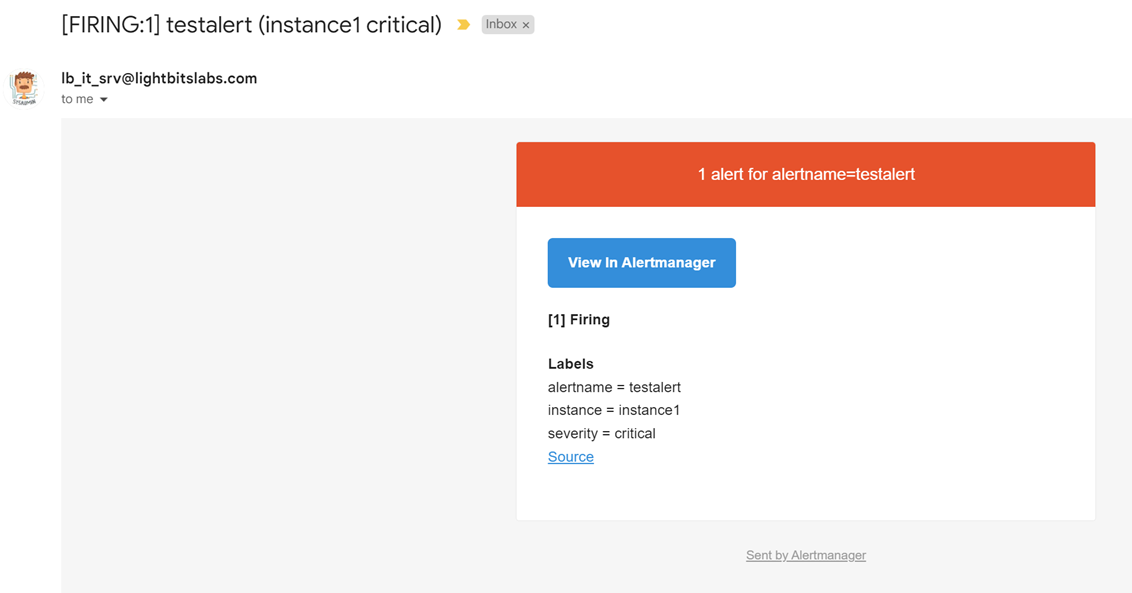
Send a test alert (this sends an alert with the name-testalert from instance1 with severity=critical):
The alert should appear in your alert list now. It only lists alerts that need to be silenced:
The alert should appear in your email inbox within 30 seconds or so:
Silence the alert from the UI, or with amtool. Note that a comment is required.
The output will show the unique ID of the silenced alert. Also, the output of the query command should no longer show the testalert.